Tunic Desktop
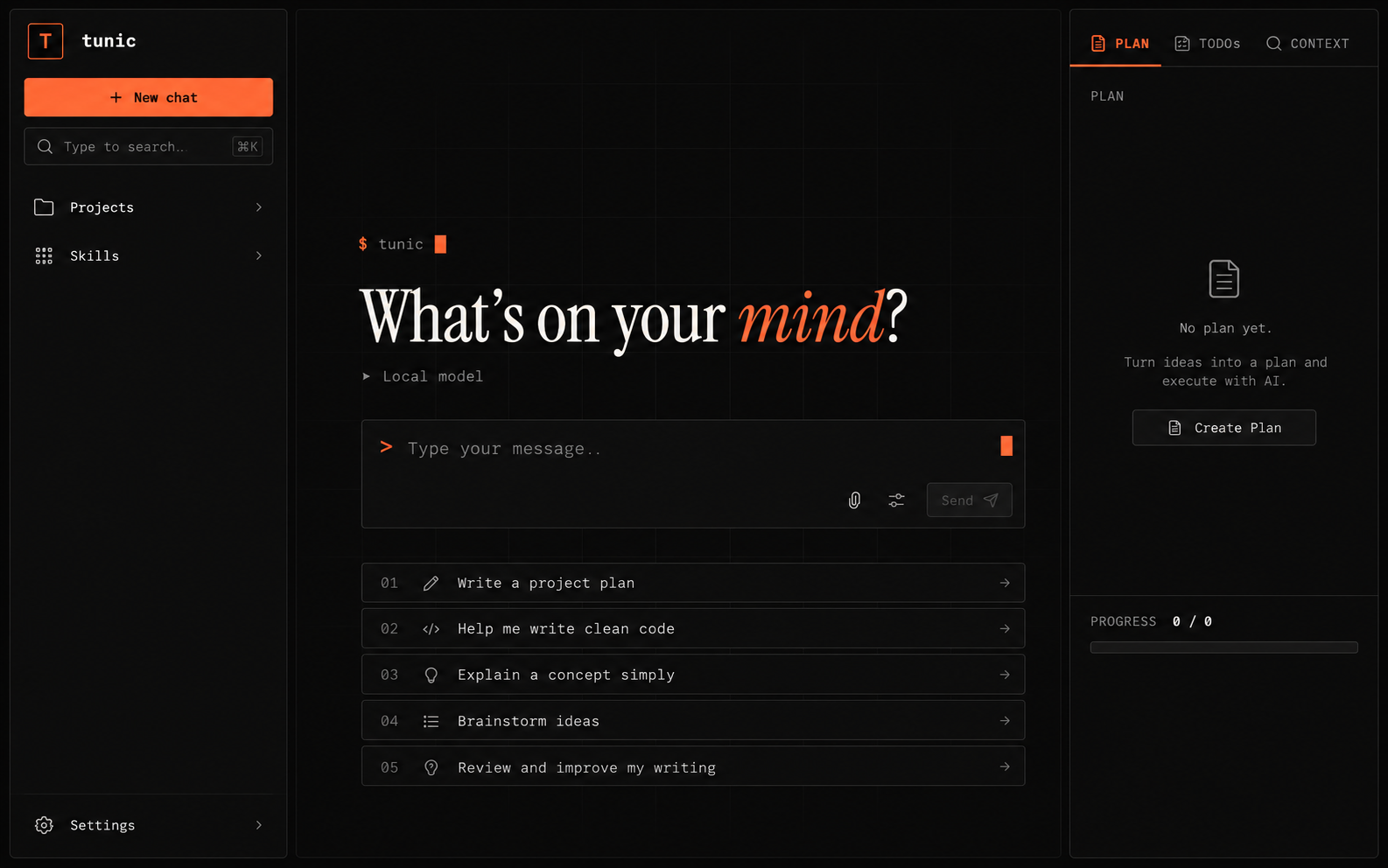
I built Tunic Desktop as a local-first AI workspace that brings streamed chat, flexible model providers, permission-aware tools, and project planning together.
Why I built Tunic Desktop
I built Tunic Desktop around a question I keep coming back to: what would an AI assistant look like if it could help with ongoing desktop work, instead of stopping at a chat reply? I wanted the project to bring conversations closer to the things they are about—files, code, research, and plans—while keeping model choice and local project data in the user's hands.
That direction is visible in the product's shape. Tunic is an Electron desktop app with streamed conversations, project spaces, planning tools, and a permission-aware tool system. I see the central challenge as connecting those capabilities without turning the assistant into an opaque process with unrestricted access to the machine.
One conversation layer, multiple model providers
I did not want the chat experience to depend on a single model service. Tunic has a provider layer that supports local inference through LM Studio and vLLM, as well as hosted services including OpenRouter and Google AI. Other adapters are present in the codebase too. A shared provider contract gives the conversation pipeline a consistent way to send requests, stream responses, and handle tool calls across those integrations.
That separation matters to me because provider choice affects how someone wants to work: a local model server and a hosted API have different setup and operating needs, but they can still fit the same desktop workflow. Streaming keeps generated responses visible as they arrive. The interface can then move from a response into an action when the model requests an available tool.
Useful tools with explicit boundaries
Tunic's tool workflow can support multi-step work with capabilities for files, Git, search, web access, and code analysis. A permission setting controls whether actions run automatically, require approval, or are disallowed. I consider that boundary part of the product itself. If an assistant can act on a project, the user needs a clear way to decide how much authority it has.
Under the hood, a tool loop coordinates the model and tool results, while a registry connects requests to built-in tools. The architecture documents more than 50 built-in tools, along with skills and plugins that extend the system. My focus here is not simply to give a model more actions; it is to make tool use part of a workflow whose access rules the user can understand and control.
Connecting chat to project work
I also wanted Tunic to have a place for work that continues after a conversation ends. Project spaces include Kanban-style tasks, notes, and documents alongside chat. This lets the assistant sit near the context of a project rather than in a separate, disposable thread. The app's context pipeline can bring relevant information into a conversation, and its architecture includes context compaction for longer sessions.
This is one of the choices that makes Tunic feel like a workspace to me, rather than only an interface for trying different models. The project system and chat system share the same desktop environment and local data store, so planning and assistant conversations can belong to the same body of work.
Voice input and local-first data
I added a voice path using Transformers.js and the Whisper Tiny English model. The transcription pipeline loads when it is first needed, then converts audio chunks into text for the conversation. It gives Tunic another way to start an interaction without changing the rest of the chat workflow.
Conversations and project records are persisted in SQLite through better-sqlite3. Local persistence is an important part of the direction I chose: the desktop app keeps its workspace data on the user's machine, while model inference can connect to a configured local server or hosted provider. That distinction lets Tunic offer provider flexibility without treating the workspace database as a remote service.
How I structured the desktop app
I built the interface with React and TypeScript inside Electron, but kept the renderer isolated from operating-system access. The renderer is sandboxed and does not get direct Node.js access. It talks to the Electron main process through a controlled contextBridge and IPC API; the main process handles privileged work such as database and system operations.
That process boundary is one of the most important technical decisions in the project. It lets me use web technologies for the interface while keeping local capabilities behind an explicit bridge. Zustand manages frontend state, Tailwind CSS styles the interface, and Vite with electron-vite supports the desktop development and build workflow.
What this project represents to me
For me, Tunic Desktop is an exploration of what a practical AI workspace needs around the model itself: provider choice, relevant project context, tools that can act, and boundaries for those actions. The work is in making those parts cooperate inside one application, while leaving the user able to understand where data lives and what the assistant is allowed to do. That is the product direction I am building toward with Tunic.